![PXLvision_logo20_std_pos_144@2x.png]](https://support.pxl-vision.com/hs-fs/hubfs/Corporate%20Identity/PXL%20logos/PXLvision_logo20_std_pos_144@2x.png?height=50&name=PXLvision_logo20_std_pos_144@2x.png)
| Table of Contents |
Purpose
PXL Check enables agents to perform manual reviews of data collected during the identity verification process.
Agents can:
- Review captured identity data and media
- Correct extracted data where necessary
- Accept or reject an identity verification
Login
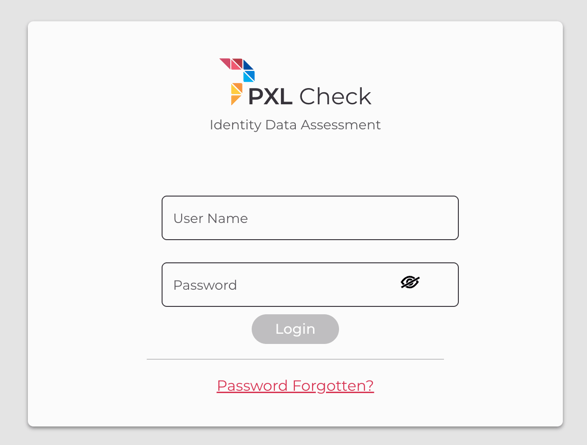
Access to PXL Check is restricted to authorized agents. Users log in using their assigned credentials.
Access rights are managed by a PXL Vision administrator. Depending on the configuration, an agent may have access to one or multiple datasets.
If an agent does not have access to any dataset, they will not be able to log in.
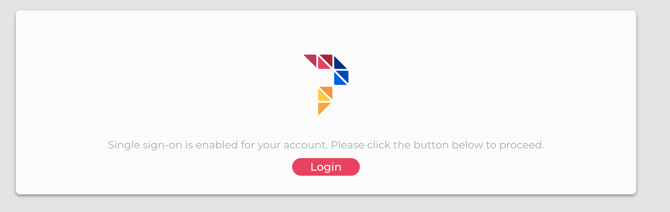
Single sign-on (SSO) is also available to customers who manage user credentials themselves. When SSO is configured, agents can access PXL Check without entering separate login credentials.
Main Header
The Main Header is displayed throughout the application. It shows the application version, as well as enables the user to change the language and log out.

Transactions Dashboard
The dashboard displays transactions which need to be or have been reviewed. It consists of a permanently displayed header and two tabs.
Header
- Name of the current dataset
- In case an agent is linked to multiple datasets, the “Switch Dataset” button is displayed and allows changing the dataset
- The "Start Review" button opens the oldest transaction in the queue for review
- The transactions list can be retrieved again via the “Refresh“ button
- "Search by Transaction Code” button opens the search popup. Only transactions from the current dataset are searchable.
- "Search by Order ID" (customer's own reference number) button opens the search popup. Only transactions from the current dataset are searchable.

"Switch Dataset" Popup
The "Switch Dataset" popup displays the available datasets and the customer accounts, linked to them. An available dataset can be selected or the popup closed, without changing the current selection.

Tab "Open"
- Tab “Open“ lists all transactions available for review
- Date and time when the transaction became available for review
- Transaction code
- Customer account name within the dataset, the transaction belongs to
-
Order ID / own customer reference
- Internal status, indicating whether the transaction is available for review or is already being reviewed
- "Review" button, allowing to start of the selected transaction directly
- Quick search on all fields within the displayed results

Tab "Reviewed"
- Tab “Reviewed” displays the already reviewed transactions in the last 30 days
- Date and time when the transaction became available for review
- Transaction code
- Customer account name within the dataset, the transaction belongs to
- Review status, indicating whether the transaction was approved or rejected
- Review completion date and time
- Reviewer name
- Comments, added when completing the review
- "Summary" button, opening the "Summary" screen
- Quick search on all fields within the displayed results

Transaction Overview
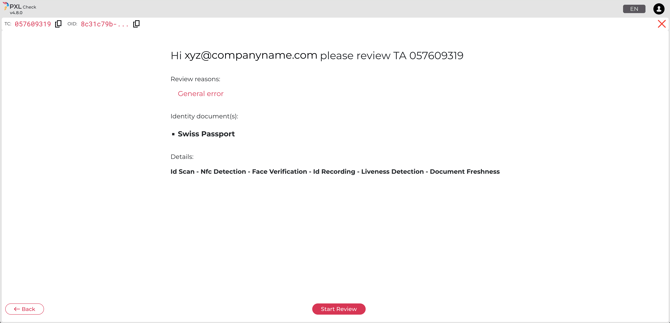
When starting a review, this page shows basic transaction details:
-
Reason(s) for manual review
-
Document used for the identification, if available
-
Transaction details
-
The “Start Review” button opens the review screen
- "X" button to close the review and get back to the Transaction Dashboard
Review Header
The Review Header displays common transaction details:
-
Transaction code and Order ID (if available)
-
Review tabs
-
Review reasons
-
Additional help resources
- "X" button to close the review and get back to the Transaction Dashboard

Identity Review
The Identity Review tab enables the review of document images, videos and data, as well as the selfie video taken by the end-user.
Document Validation
The Document Validation section enables the review of the captured images and extracted data.
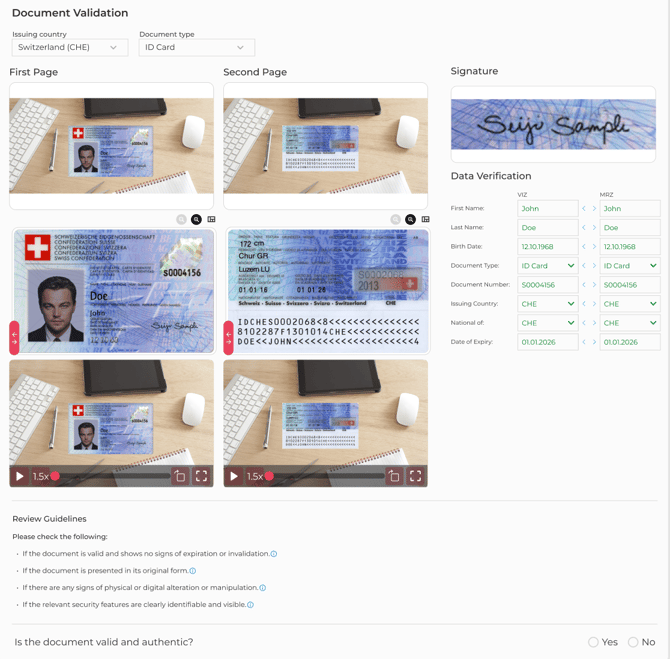
The automatically detected issuing country, document type and optional extra detail (e.g. Swiss residence permit subtype) are displayed at the top. They can be changed via the drop-down lists in case the automatic classification is incorrect. The selected document determines which document specimens will be available to compare the scanned document against. It also determines which document data fields are displayed and need to be reviewed in the Data Verification section.

The first set of images shows the full frames, while the second set shows the cropped documents.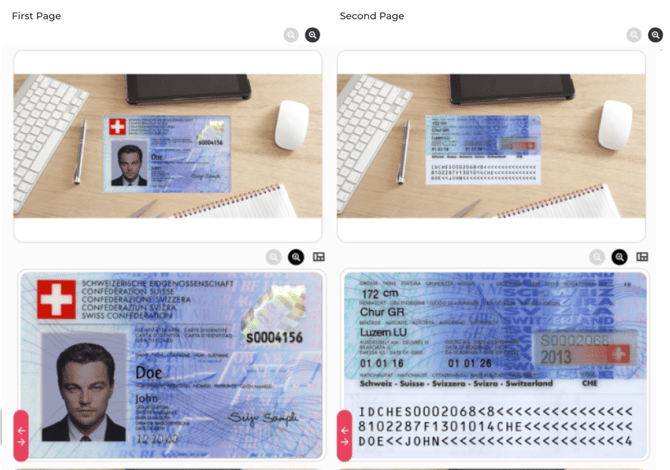
The cropped images set also features a slider, which uncovers the respective document specimen. 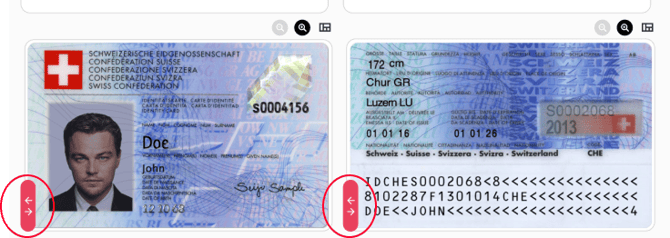
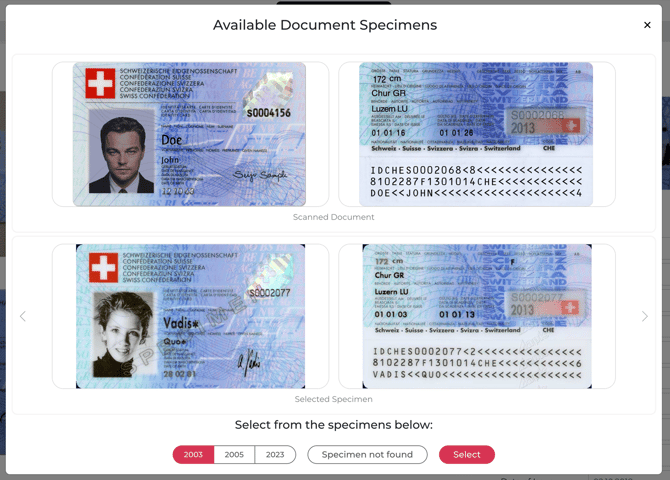
Document specimens can be chosen by clicking the following button: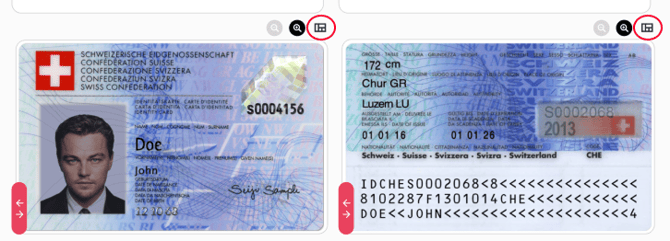
The screen displays the scanned document, the currently selected specimen and the available specimens per edition issuing year.
-
A new specimen can be selected by clicking on the buttons with years on them.
-
Clicking the "Template not found" button sends an email to PXL Support to inform about the missing specimen, closes the popup and doesn’t update the selected specimen in the Document Verification section.
-
Clicking the "Select" button closes the popup and updates the Document Validation section with the selected specimen.
-
Clicking the "X" button closes the popup without updating the selected specimen on the Document Validation section.
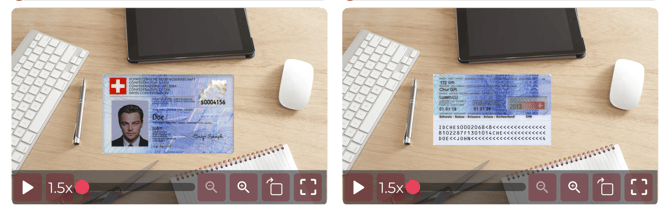
The third set shows video recordings of the scanned document. Video recordings of the document enable the agent to inspect security features, which may not be visible on the image, e.g. holograms. Videos can be zoomed in, via scroll wheel or the zoom buttons
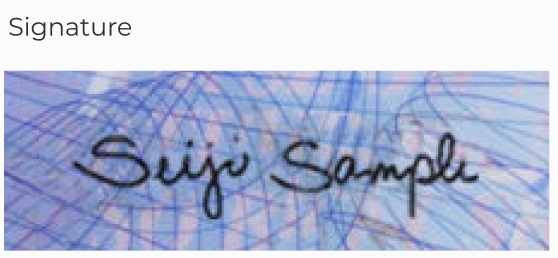
The cropped signature from the scanned document is displayed separately.
Data Verification
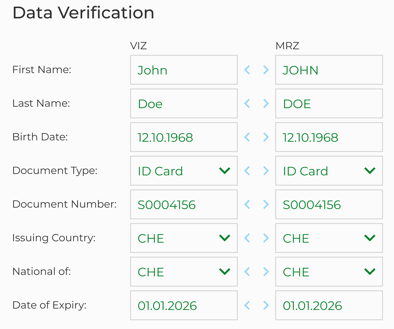
Extracted document data from different document zones are compared automatically.
-
Depending on the document, data can be displayed from the VIZ (Visual Inspection Zone) and one of MRZ (Machine Readable Zone), NFC or Barcode zones.
-
Matching values are colored in green. Transliteration and truncation rules of the machine readable zones (MRZ, NFC, Barcode) are considered when comparing to the human readable VIZ.

Example: Transliteration

Example: Truncation
-
Differences between values of the same field in different zones are highlighted in red.

-
Mandatory fields left empty will be outlined in red.
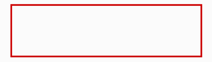
-
The left/right arrows between fields enable quick copying from one direction to the other in case one value is wrong and the other one correct.

-
Edited fields are highlighted in yellow
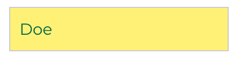
-
NFC and Barcode values are not editable and can only be copied from.
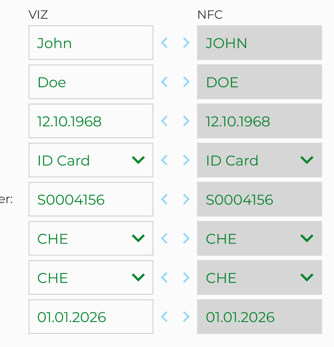
-
If a given field doesn’t exist in a given zone, its value is “Not Applicable“ and no comparison is possible. The value in the zone which contains the field can still be corrected, if needed.

- Driving licenses include special fields to accommodate the driving categories table. Lines can be added/removed via the respective "+"/"-" buttons.
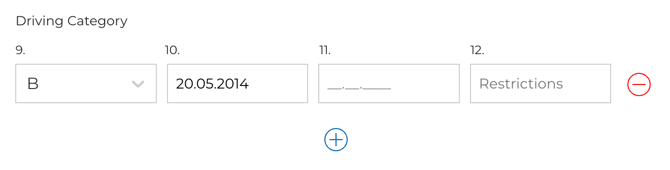
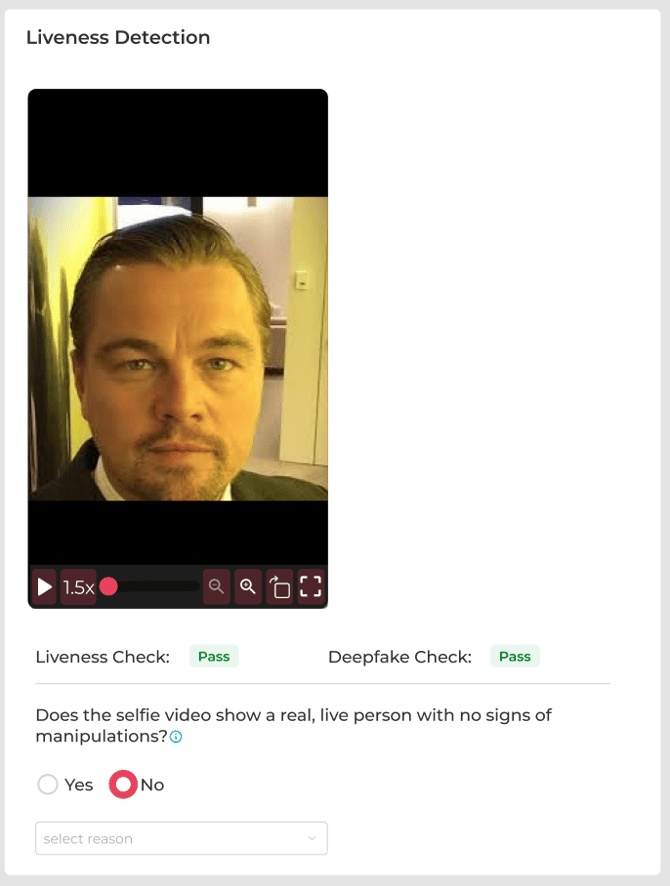
Liveness Detection
The Liveness Detection section enables the review of the selfie video taken by the user. The results of two automated checks are also displayed in this section: the Liveness Check and the Deepfake Check, each shown as "Pass," "Fail," or "Not Performed.
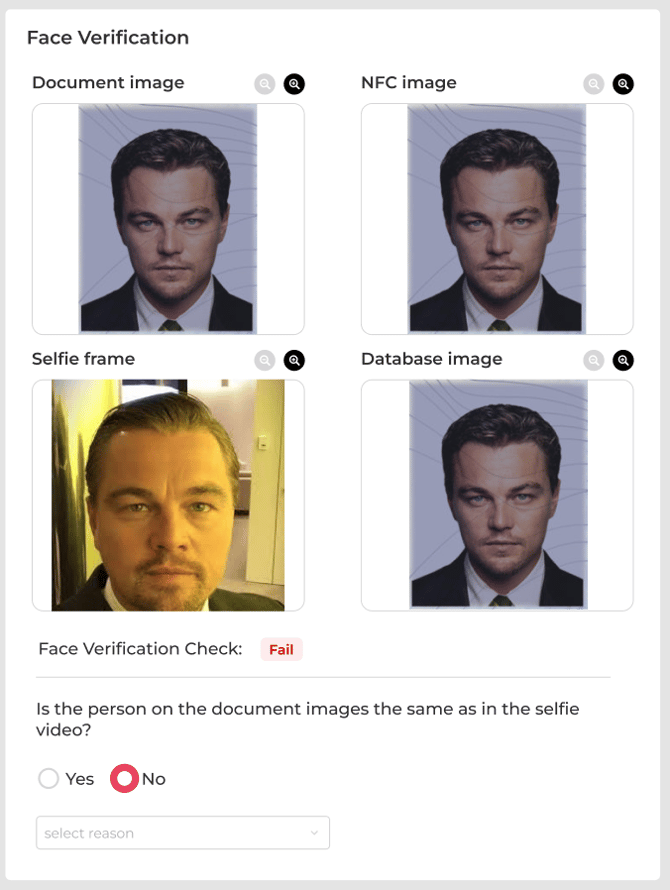
Face Verification
The Face Verification section enables the comparison of face images from the sources available for the transaction. Depending on configuration, this can include the selfie video, the document image, the NFC image, and an external reference image. The result of the automated face verification ("Pass" or "Fail") is also displayed in this section.
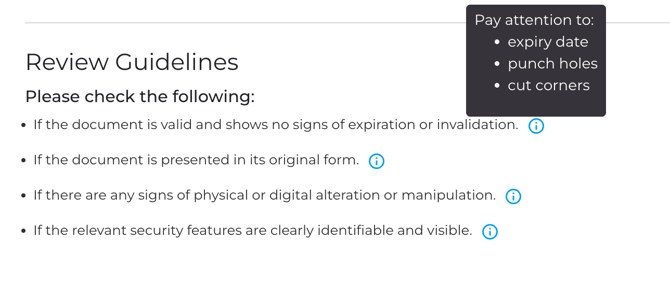
Review Guidelines
The Document Validation, Liveness Detection and Face Verification sections provide guidelines and tooltips to aid the review. Hover over the tooltips to reveal more detailed guidance.
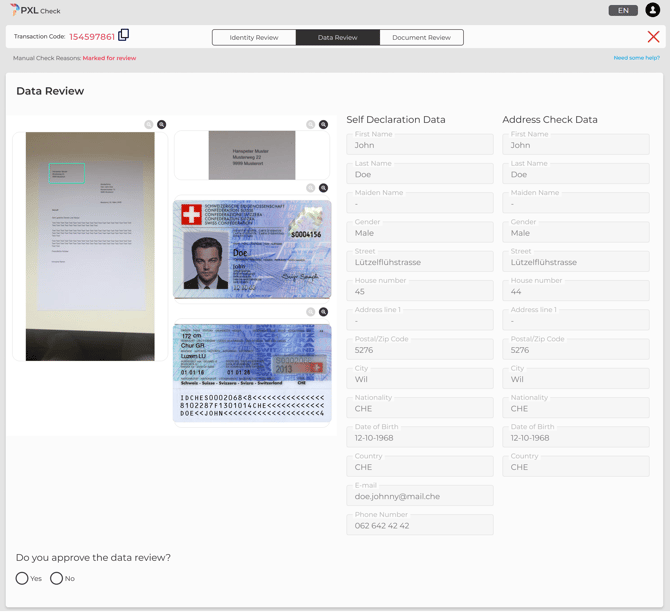
Data Review
The Data Review tab enables the review of address and personal data, obtained from sources other than the scanned document. No data can be edited.
User Provided Address Proof
The image of a non-identification document, containing the customer's name and address, e.g. utility bill, and an image of the cropped address out of that document are displayed along with the cropped images of the scanned identity document.
Automated Address Check
Swiss addresses can be verified with the Swiss Post and the confirmed address is displayed.
Self Declaration
The end-user can provide personal information and their address by entering them manually during the identification process.
Document Review
The Document Review tab enables the review of any additional document, provided by the end-user during the identification process.
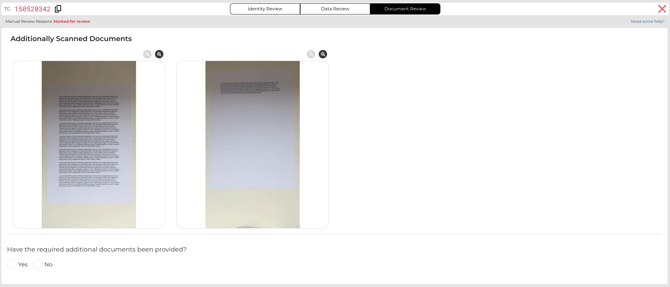
Review Footer
The Review Footer exists in each section and enables the completion of the review.
The following elements are part of the Review Footer:
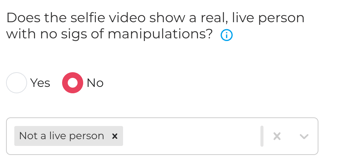
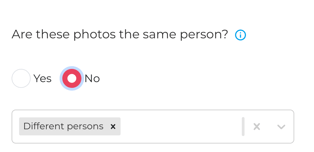
- a section specific question
- Yes/No buttons to answer the question
- lists with rejection reasons - at least one reason is mandatory if No is the answer, multiple reasons can be selected from each list
- a selected reason can be removed by clicking the "X" next to its name



Main Footer

The Main Footer is displayed throughout the review. It enables the user to make a final decision of the review and has the following elements:
- a summary of all relevant review results, based on the answers to the questions
- an optional flag (customer-specific) to mark the transaction for further processing
- an optional comment field
- buttons to accept or reject the reviewed identity
Accept
The following validation rules are observed when approving an identity:
- all review questions must be answered with Yes
- mandatory identity document data fields cannot be empty (empty mandatory fields are highlighted with a red outline)
- identity document data fields cannot have mismatches (mismatches are highlighted in red)
Reject
The following validation rules are observed when rejecting an identity:
- at least one review question must be answered with No
- at least one reason must be selected for each question answered with No
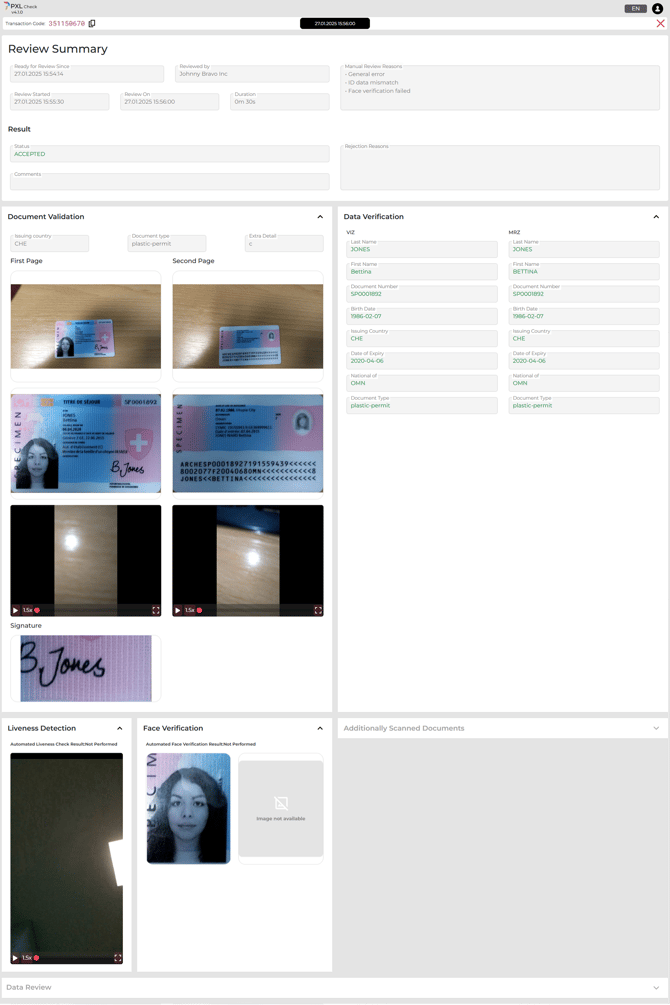
Review Summary
The “Summary” screen can be accessed via the “Reviewed” tab on the Dashboard.

It provides a read-only summary of a completed review. At the top of the screen, one or more tabs display individual review instances with their respective date and time. Multiple tabs may appear if a transaction has been reviewed more than once.
The screen includes all data that was assessed during the review, such as:
- When the transaction became ready for review
- Who performed the review
- Review start time and duration
- Manual review reasons
- Final result (Accepted or Rejected)
- Rejection reasons and comments
Below, the screen displays the different sections that were part of the review (e.g. Document Validation, Data Verification, Liveness Detection, Face Verification), including the data and media that were reviewed.
Only sections that were part of the specific transaction are shown. If a certain check (e.g. Data Review) was not included, no data will be displayed for it.
This screen is primarily intended for review tracking and quality control purposes, for example by supervisors who want to revisit and understand past review decisions.